 NGL Biathlon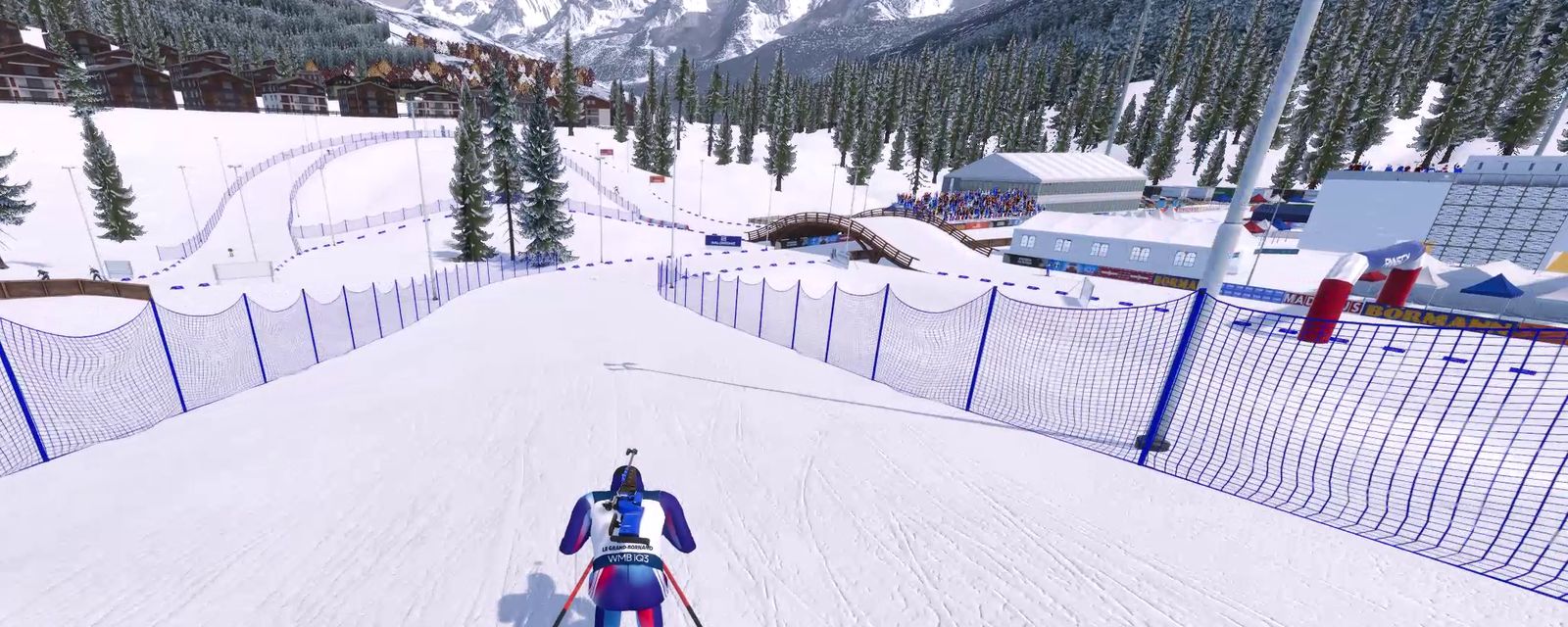
Players ask us whether the game will run on a laptop, which settings to lower when a race starts to stutter and why the frame rate stays below what the monitor can show. Here is the Graphics & sound tab row by row, with what each setting changes in the picture
Where to find them
Open Settings and choose the Graphics & sound tab. The same screen opens from the pause menu during a race, so you can change the picture right there and see the result as soon as you return to the course. A few changes, video memory saving among them, only take effect from the next race, and the screen says so under the row
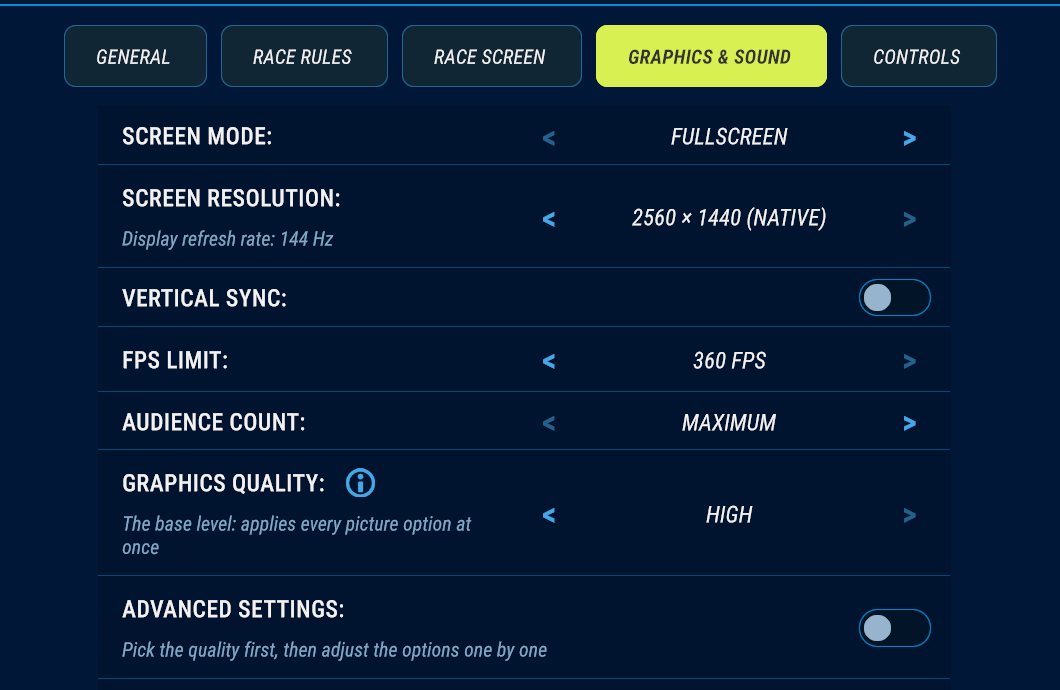
The main menu is always drawn at the High level, whatever you choose. The quality you pick applies to races, so judge it on the course. Graphics settings are shared by all saves: switching to another save or installing an athlete pack leaves them as they are
Quality: Low, Medium, High
The quality level sets the whole picture at once. This is how the levels differ
- High. Full-size textures, soft shadows that reach far from the camera, more detail on distant models and the strongest anti-aliasing
- Medium. Textures at half size. Shadows are drawn only near the camera and have sharper edges. Video memory saving is on
- Low. No shadows at all and no ski tracks in the snow. Textures at half size, as on Medium
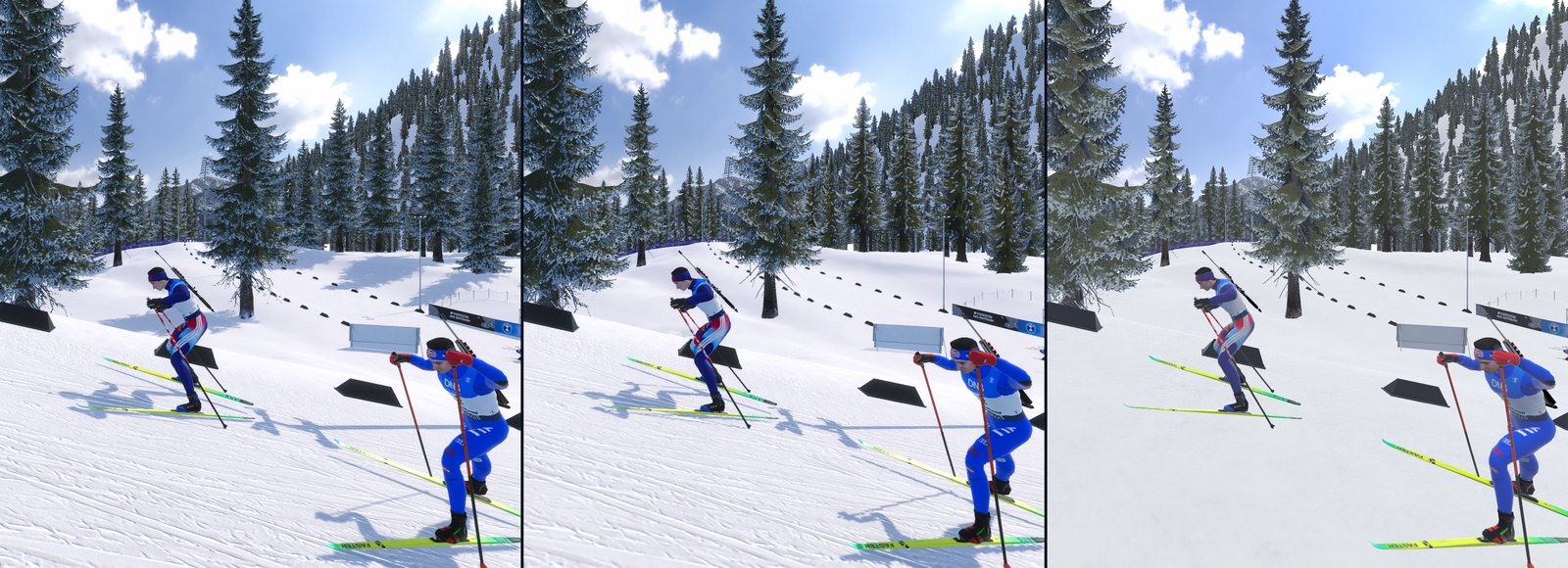
On High and Medium, snow and signs also stay sharp when you see them at a shallow angle. On Low that option is off
A new installation starts on High, with an FPS limit of 144 and vertical sync off. If NGL Biathlon 2026 is installed on the same computer, the first launch of 2027 copies its saves, and the settings come along, the quality level and frame limit included
Advanced settings
The Advanced settings switch opens the individual rows. Each row starts at the value of the chosen level, and whatever you change is laid on top of it. Pick the level first: while the advanced settings are open, the quality row is locked, and changing the level resets your adjustments. If you turn the switch off, the picture goes back to the plain level, and your adjustments return when you turn it on again
- Upscaler. The game draws a smaller frame and scales it up to the screen with FSR. The modes run from Highest quality to Performance, and each next one gives more frames and a softer picture. While the upscaler is on, it does the smoothing itself, so the anti-aliasing row is greyed out
- Texture size. Full, Half or Quarter. Smaller textures take less video memory and look softer up close
- Video memory saving. Textures are loaded as the camera needs them instead of all at once
- Sharpness at an angle. This is anisotropic filtering: snow on the course and signs along it stay sharp at a shallow angle. It costs almost no frames
- Distant detail. How far from the camera models keep their full detail: Low, Medium or High
- Shadows. Off, Low, Medium or High: how far shadows reach and how sharp they are up close. The Low quality level has no shadows, and there the row is greyed out
- Anti-aliasing. Off, Normal, Maximum or Smart. It smooths jagged edges, and the higher settings cost more frame time. Smart is FSR smoothing at full resolution: the frame keeps its size
If you are short on frames
The quickest step is to lower the quality level by one. If you want to keep the level and give up only part of the picture, the help behind the i button next to the quality row suggests an order: anti-aliasing first, then shadows, then distant detail. The upscaler adds the most frames, but the picture gets softer
Texture size and video memory saving work differently. While the graphics card has enough video memory, they add no frames. When memory runs short, the race stutters and textures appear late, and these two settings remove exactly that. On a weak graphics card this is the most noticeable gain of all
Frame limit and vertical sync
The FPS limit caps the frame rate. You can pick No limit or a value from 30 to 360 FPS. Vertical sync ties frames to the refresh of the monitor, and while it is on, the limit has no effect and its row is greyed out
Under the resolution row the game shows the monitor's current refresh rate. If the monitor can do more than it is set to, for example a 144 Hz monitor running at 60 Hz, the line tells you. The game cannot change that itself, so switch the refresh rate in your system display settings
Screen mode and resolution
The screen mode is Fullscreen or Windowed. The resolution list only offers sizes with the aspect ratio of your monitor, so the picture never stretches, and nothing smaller than 1280×720. In a window the list only has sizes smaller than the monitor. The monitor's own resolution is marked native
A new resolution is applied with the Apply button, and then the game asks whether to keep it. If you do not answer within 15 seconds, it goes back to the previous one, so a blank screen fixes itself
Spectators and sound
Audience count sets how many fans come to the race, from Maximum down to None, High by default. It covers the people in the stands, their flags and the crowd noise, and it takes effect right away, even from the pause menu. Shooting training and tutorial lessons have no spectators whatever the setting, see Training and Tutorial
Sound volume is a single slider for the whole game