 NGL Biathlon
NGL Biathlon 2027 plays with a keyboard and mouse or with a gamepad, the whole race and all the menus. Players ask us whether a controller works, whether keys can be changed, what to do on a French keyboard and why the superboost will not start from a second boost key. The answers are below
Keyboard and mouse
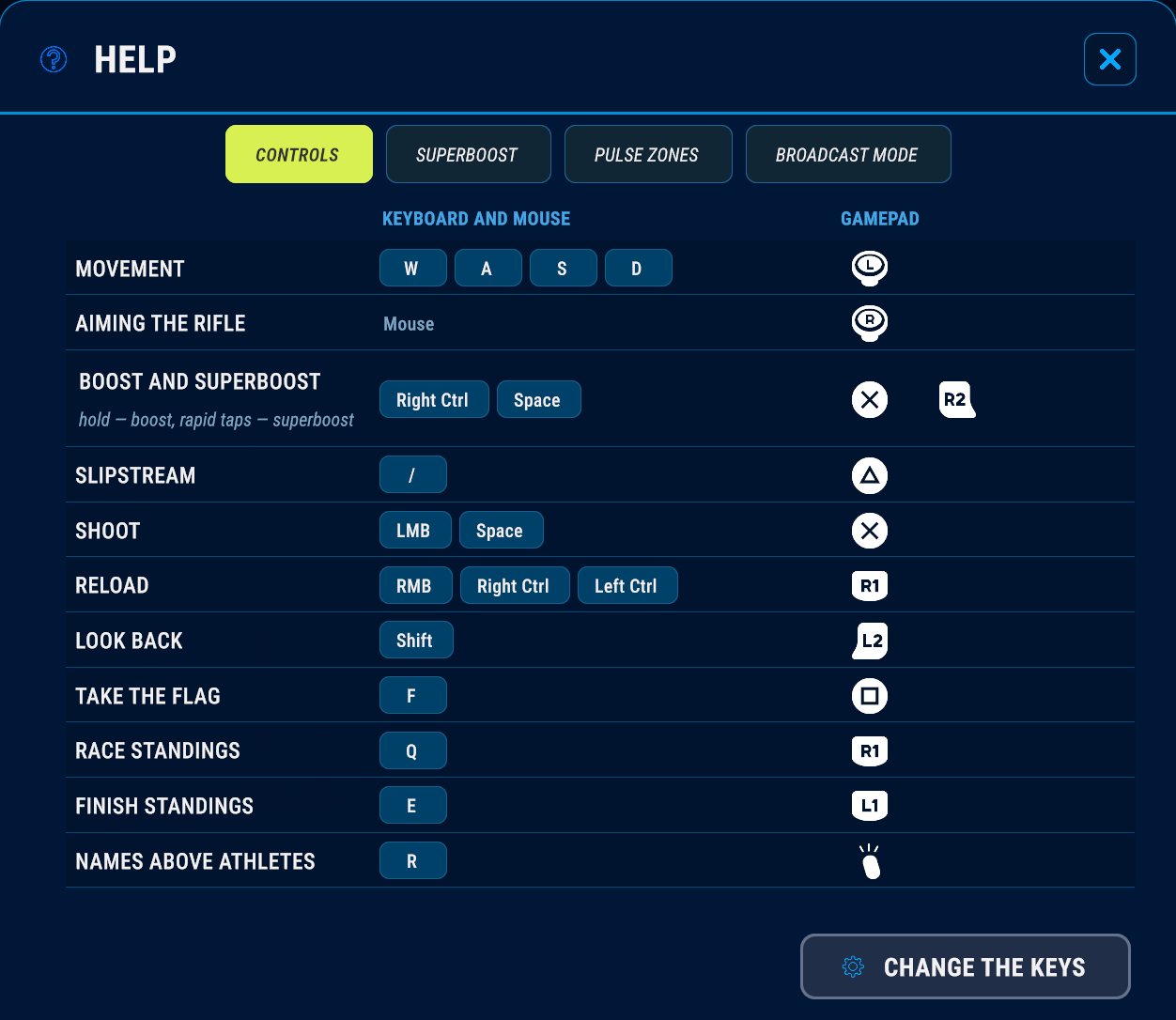
- W pushes forward, A and D steer. On a descent S drops the athlete into a tuck
- Space or Right Ctrl, held, is the boost. Quick taps on the same key start the superboost. How both work is in Skiing: stats, boost and superboost
- At the range you aim with the mouse, shoot with the left button and reload with the right one. Space shoots as well and either Ctrl reloads. More in Shooting and pulse
- Shift, held, looks back
- Q, held, shows the standings at the latest split, E the finish standings
- R turns the names above the athletes around you on and off
- /, held, is the slipstream
- F takes the flag before the finish. The game offers it in a pursuit, a mass start or on the last leg of a relay to a leader at least 10 seconds ahead, unless it is a neutral athlete, and a hint appears on screen when it is time. There is no flag in online races
- Esc is the pause
The movement keys also nudge the sight at the range, so a whole race can be skied and shot on the keyboard alone
Gamepad
- The left stick pushes and steers. Any forward tilt is a full push, and the further you tilt it sideways, the sharper the turn. Pull it back on a descent for the tuck
- A (cross on PlayStation) or RT (R2), held, is the boost, quick taps are the superboost
- At the range the right stick aims, A shoots and RB (R1) reloads
- LT (L2) looks back
- RB (R1) shows the standings at the latest split and LB (L1) the finish standings. While you are in the shooting position RB only reloads
- Y (triangle), held, is the slipstream
- View (Share/Create) shows or hides the names
- X (square) takes the flag
- Menu (Options) opens the pause and closes it again
In the menus you move with the stick or the d-pad, confirm with A and go back with B (circle). The race start and finish screens work the same way, no mouse needed
The game shows hints for whatever you are holding. Touch the gamepad and the hints switch to its buttons, move the mouse and they switch back. A gamepad that is only plugged in and lying on the desk does not take over
Changing the keys
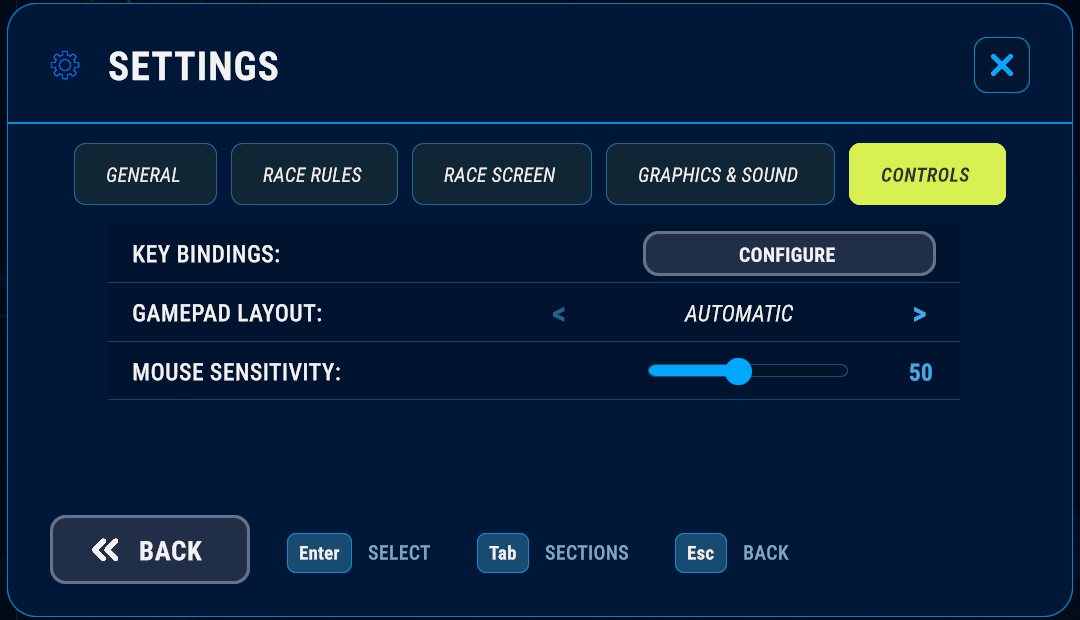
The key bindings screen opens from Settings, Controls tab, the Key bindings row. It also opens from Help, Controls tab, with the Change the keys button at the bottom, in the main menu and in the pause menu alike. The keyboard and the gamepad have separate columns and are saved separately
- Click a key in a row and press the new one. Esc cancels
- If the key is already taken, the game says by what and offers to swap. One key may serve two actions that never happen at the same moment: Space shoots at the range and boosts on the course, RB reloads and shows the standings
- Movement is a single row: W, A, S and D or the arrow keys, as a set. They cannot be split up one by one
- Aiming with the mouse and the right stick is not rebound. Neither are the broadcast keys, see Broadcast mode
- Boost and superboost share one row, because the superboost is taps on the boost key
- Reset all brings back the default keys and buttons
AZERTY and other layouts
Keys work by their place on the keyboard, and the game labels them by your layout. On AZERTY the movement keys are Z, Q, S and D, and that is what the hints say, while the split standings are on the A key. With a Russian layout the labels stay Latin: W, A, S, D
Two boost keys and the superboost
The boost has two keys: Space and Right Ctrl on the keyboard, A and RT on the gamepad. You can hold one and tap the other: the taps count towards the superboost. The boost does not have to be released for that
Other settings
The Controls tab in Settings has two more rows. Gamepad layout picks how buttons are labelled in hints: Xbox, PlayStation or Automatic, which follows the gamepad you have plugged in. It changes only the labels, not the buttons themselves. Mouse sensitivity is a slider from 10 to 100 that sets how the sight responds to the mouse at the range
All the keys and buttons are always listed in Help, Controls tab