 NGL Biathlon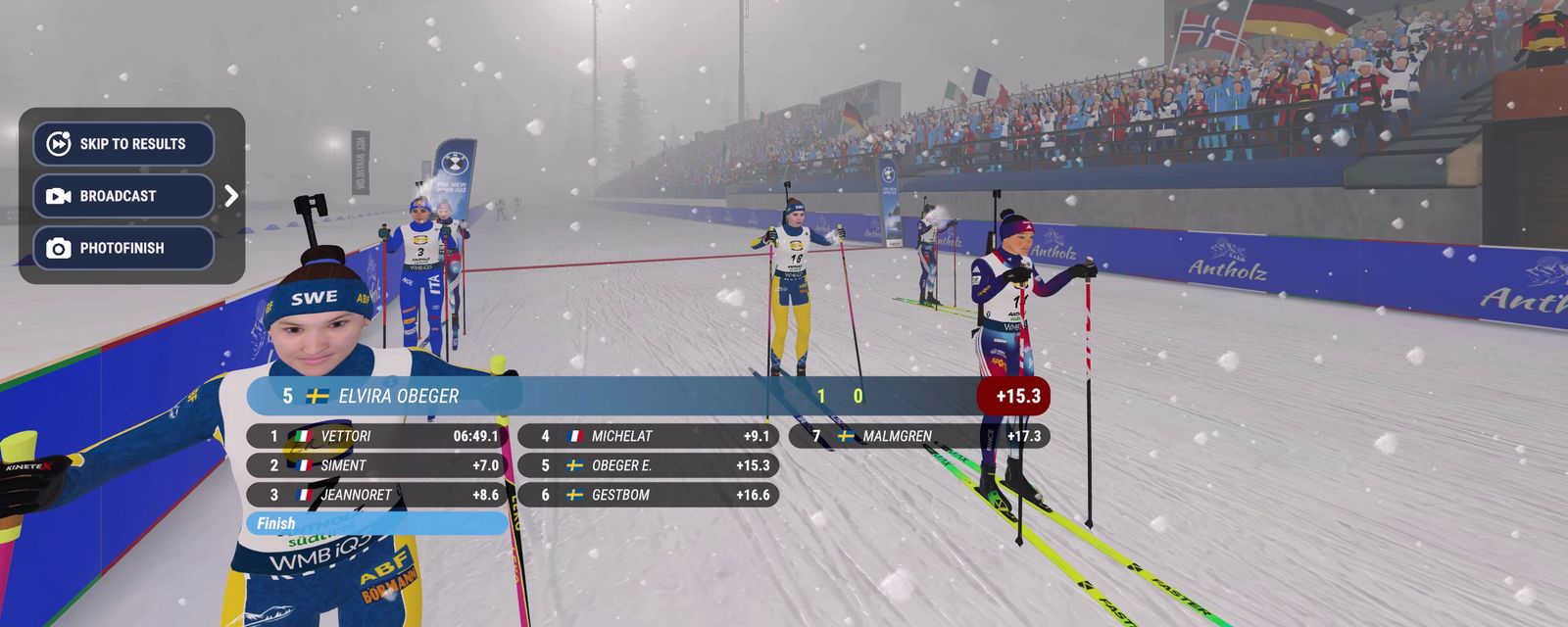
In broadcast mode the race runs by itself and you handle the camera like the director of a TV feed. Everyone skis and shoots without you, and you decide whom to show, from where and how close. Players ask us how to turn it on, why Shift with a number shows the wrong athlete and whether a gamepad can run the broadcast. All of that is below
Where broadcast mode is turned on
- Quick race: the track screen has a Broadcast mode switch. With it on you do not ski yourself and watch the whole race
- Relay: if the Stage row is set to one athlete, you ski only that athlete's leg and the rest of the race is shown as a broadcast. More in Relays
- After the finish: the finish panel has a Broadcast button. It moves the camera to whoever is closest to the finish among those still racing, so you can watch the race to the end. It also works after a DNF
- A whole tournament: with the Broadcast only setting you watch every race of the tournament as a spectator. It is set when the tournament is created, and the career does not have it. More in Your own tournament
- A race without you: if you did not qualify for a pursuit or mass start, or in the career did not make the relay team, the screen before the race shows a Watch button instead of the start. You can also skip it with Skip Race, and the game shows the results right away
Who is on screen
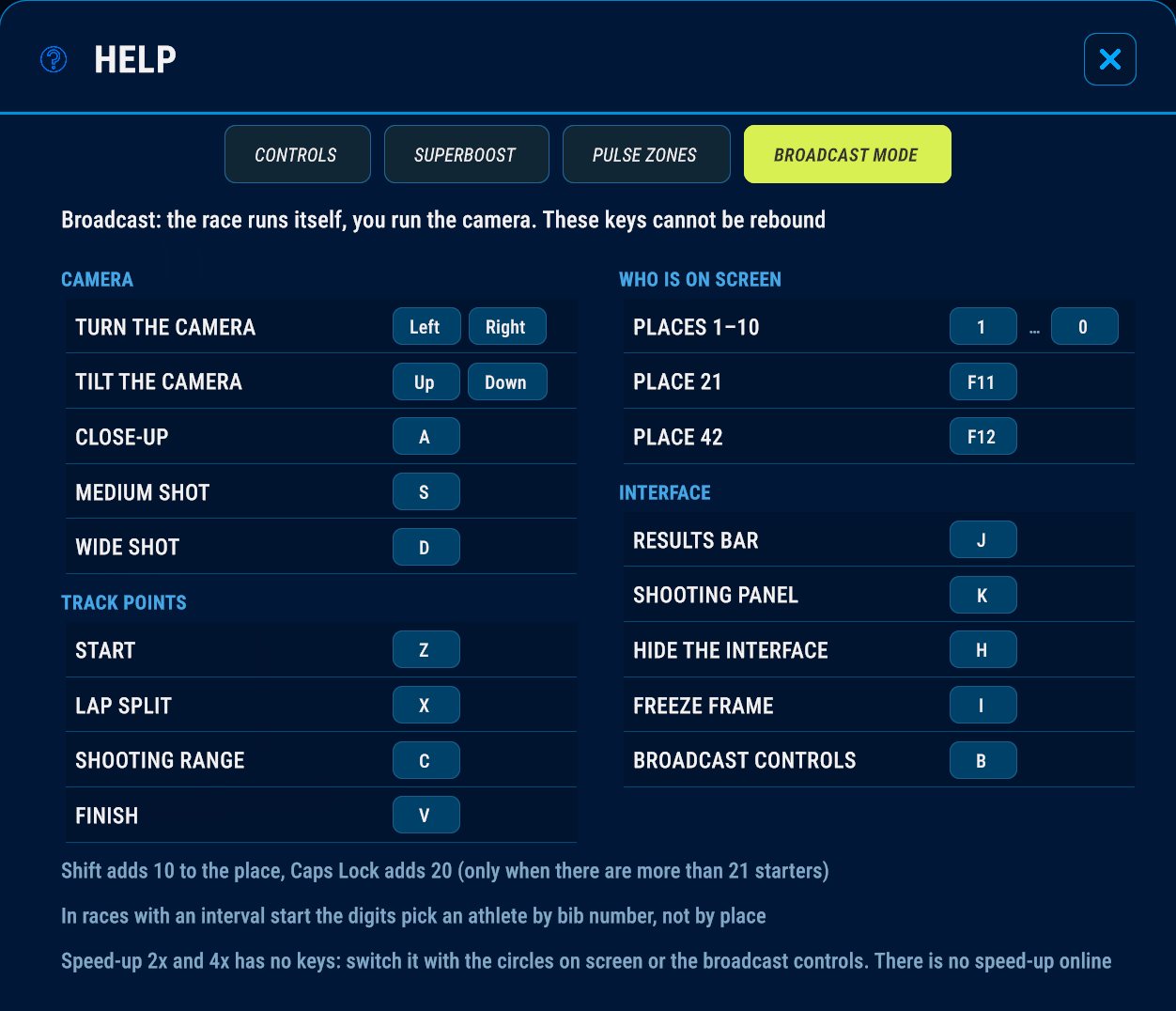
Keys 1 to 9 show the athlete in that place, 0 shows the tenth. Both the main row and the numeric keypad work. Shift adds 10 to the place: Shift and 3 give thirteenth place, Shift and 0 give twentieth. Caps Lock, when it is on, adds 20, but only when there are more than 21 athletes. F11 shows 21st place, F12 shows 42nd, the last one in the largest field
A place here is the position in the race right now: finishers are ranked by the finish results, and among those still on the course whoever has covered more distance is higher. The sprint, the individual and the short individual have an interval start, and there the numbers pick an athlete by bib number rather than by place. If Shift with a number showed the wrong athlete in a sprint, this is why
Camera
- The left and right arrows turn the camera, up and down tilt it
- A, S and D switch between close-up, medium and wide shots. The broadcast starts on the medium shot
- Z, X, C and V put the camera on a point of the course: the start, the lap split, the shooting range and the finish. The camera stays in place and the athletes pass by it. A number key attaches the camera to an athlete again
Panels and a clean frame
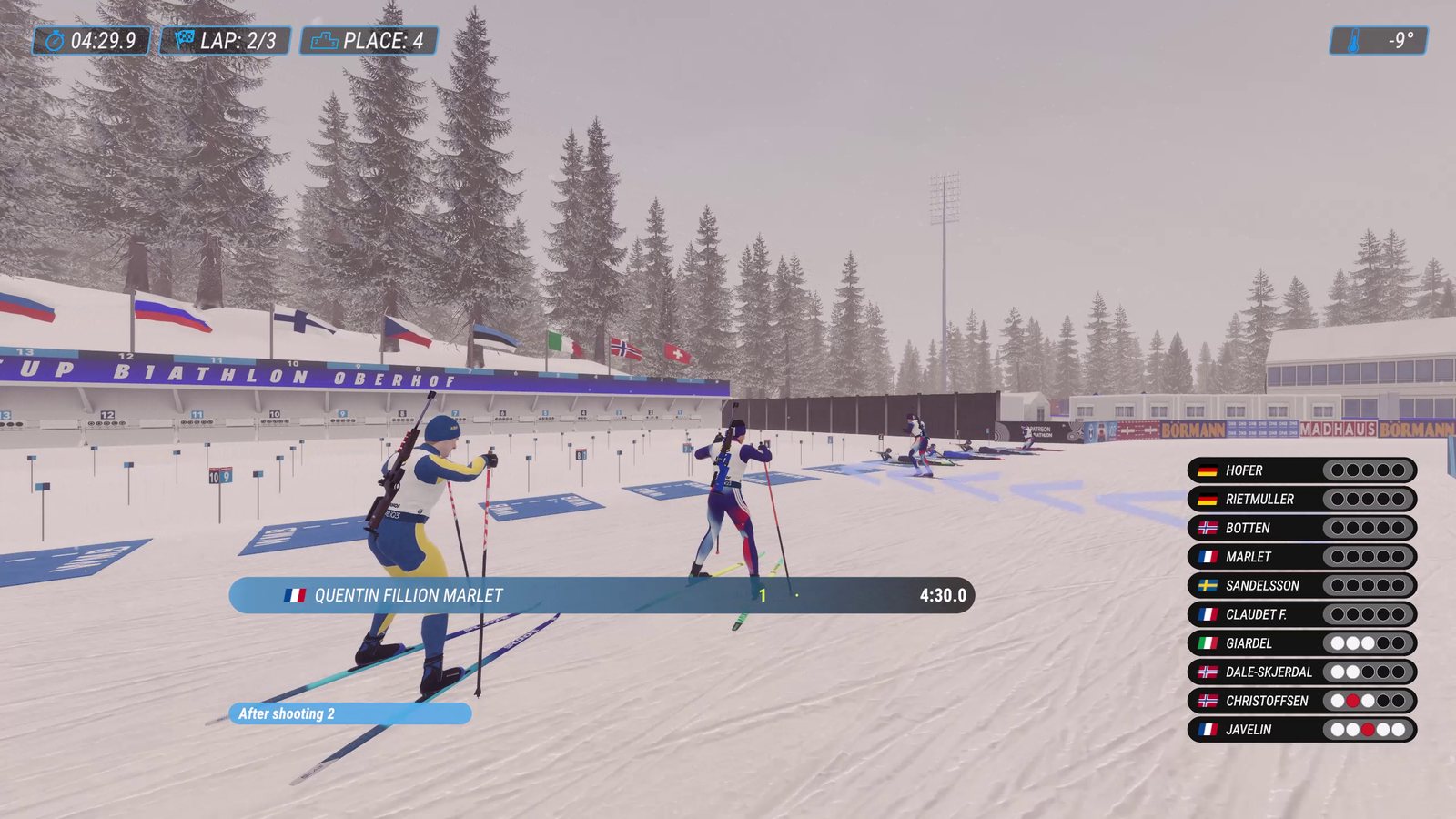
- J is the results bar at the bottom of the screen: the leader and twelve more athletes by the splits
- K is the shooting panel with the targets at the range
- H hides the whole race interface. The race keeps going as before, and a second press brings everything back
- I is the freeze frame. The race stops, but you can still turn the camera and change the shot, which is handy for screenshots. The pause menu on Esc is a different thing: while it is open, the camera, shot and athlete keys do nothing
- R turns the labels of the athletes on screen on and off: bib, flag and name. There are no labels on the freeze frame. It is the same key as in a normal race
Speed-up to 2x and 4x is switched by the circles on screen and has no key of its own. Picking a speed ends the freeze frame. Speed-up exists only in broadcast mode: when your leg of a relay comes and control returns to you, the race runs at normal speed again
Broadcast controls and the gamepad
The B key opens the broadcast controls, a panel with all of the above as buttons: picking an athlete from a grid of places or bib numbers, the course point cameras, the shots, the freeze frame, the panels, hiding the interface and speed-up. You can click it with the mouse as well
On a gamepad the panel opens with the left centre button: View on Xbox, Share or Create on PlayStation. You move around the panel with the left stick or the d-pad, and the right stick turns the camera. That way the whole broadcast can be run from a gamepad without touching the keyboard
The broadcast keys cannot be rebound. The full list is always at hand: Help, Broadcast mode tab, in the main menu and in the pause menu on Esc